
How Do I Activate Office by Phone?
When attempting to activate Office 2019/2016 with your license key, you might encounter an activation error message. This guide explains the phone activation process step by step.
Recognize the Activation Error Message
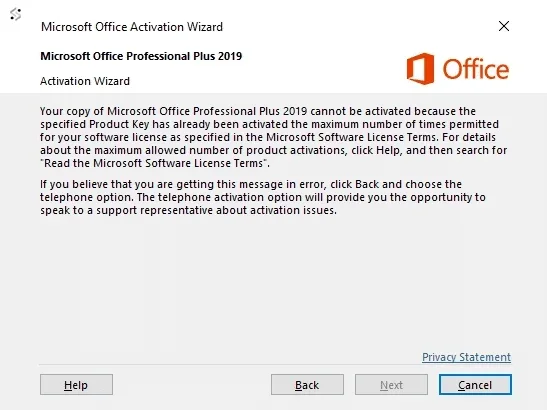
Below is the standard notification you may see when phone activation is required.
Microsoft Office may display the Activation Wizard after the maximum number of online activation attempts has been reached.
When this message appears, continue with the telephone activation option shown in the wizard.
Proceeding with Phone Activation
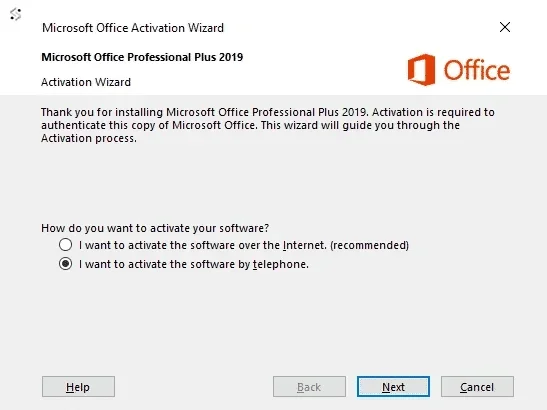
When you receive the activation message, follow these steps:
Can’t see a phone number or having issues? Click here for support.
Click “Next” to proceed.
You’ll then access the telephone activation screen.
Select your country from the dropdown menu. This generates the specific contact number for your location.
Step-by-Step Phone Activation Process
Follow the automated telephone instructions carefully and keep the Office Activation Wizard open on your computer.
- Contact Microsoft Center Use the telephone number provided in the activation screen.
- Give call-recording consent Choose option 1 to give consent for call recording.
- Enter the security code If prompted, enter the security code using your phone keypad.
- Select option 3 Important: Select option 3, not option 2, as option 2 will cause activation failure.
- Press option 1 Press option 1 when prompted by the automated system.
- Enter your Installation ID Input the Installation ID displayed on your PC using the telephone keypad.
- Confirm previous usage When asked about previous usage, press 0 because this is your first activation.
- Wait for verification The system verifies your Installation ID and generates your Confirmation ID.
- Enter the Confirmation ID Carefully input the Confirmation ID into your PC and select “Next.”
- Complete Office activation Once successful, your Office installation is activated.
- Finish the phone process Complete the process by pressing option 2 on your phone.
Installation ID and Confirmation ID Entry
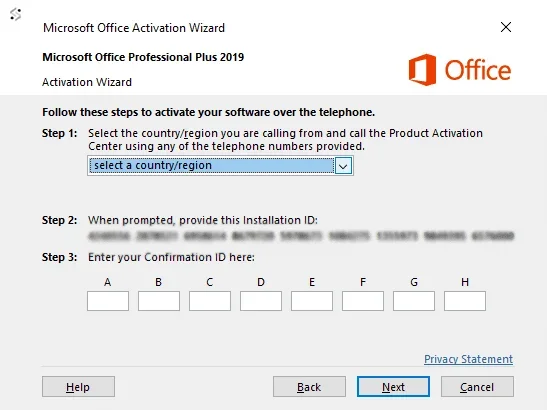
Enter each Confirmation ID group into the matching field shown in the Activation Wizard.
Review each group carefully before continuing to avoid typing errors.
- Keep the Installation ID screen open during the call.
- Enter every Confirmation ID group in the correct order.
- Select “Next” after checking all entered numbers.
Need Additional Support?
If you encounter any issues obtaining your Confirmation ID, email us your Activation ID and include your order number. We’ll process your activation request and provide your Confirmation ID.